
Find helpful articles and answers to your questions.
-

Academic Best Practice
All of the information that you could need about Academic Best Practices, including information ...
-

Welfare
A series of documents on Student Welfare, including what to do if you are struggling or if you ...
-

Instructions and Resources
Marking rubrics and guidance on how to complete the Module Activities.
-

Technical Support
This is where you will find all of the technical support information for your use of Moodle.
-
Advanced Moodle Support
Here is where you will find all of the articles that tell you all of Moodle's advanced features. ...
Advanced Moodle Support
Here is where you will find all of the articles that tell you all of Moodle's advanced features. We will be adding to it over the next few months, so check back regularly for updates.
How do I agree to the Turnitin End-User Licence Agreement (EULA) to post a response in the Academic Forum?

To see your TurnItIn report, you’ll first have to sign the EULA.
Firstly, post your response as normal. Then, scroll to the bottom of the post and click ‘Reply’. A text box should pop up below, with an ‘Advanced’ button in the bottom right. Click the Advanced option, then click the blue Turnitin hyperlink displayed below the post. Then, you will have to press the blue ‘I agree’ button at the bottom-right of the Turnitin pop-up. Once you have done this, a green tick should display on your ...
How do I access the advanced reply area in the Academic Forum?
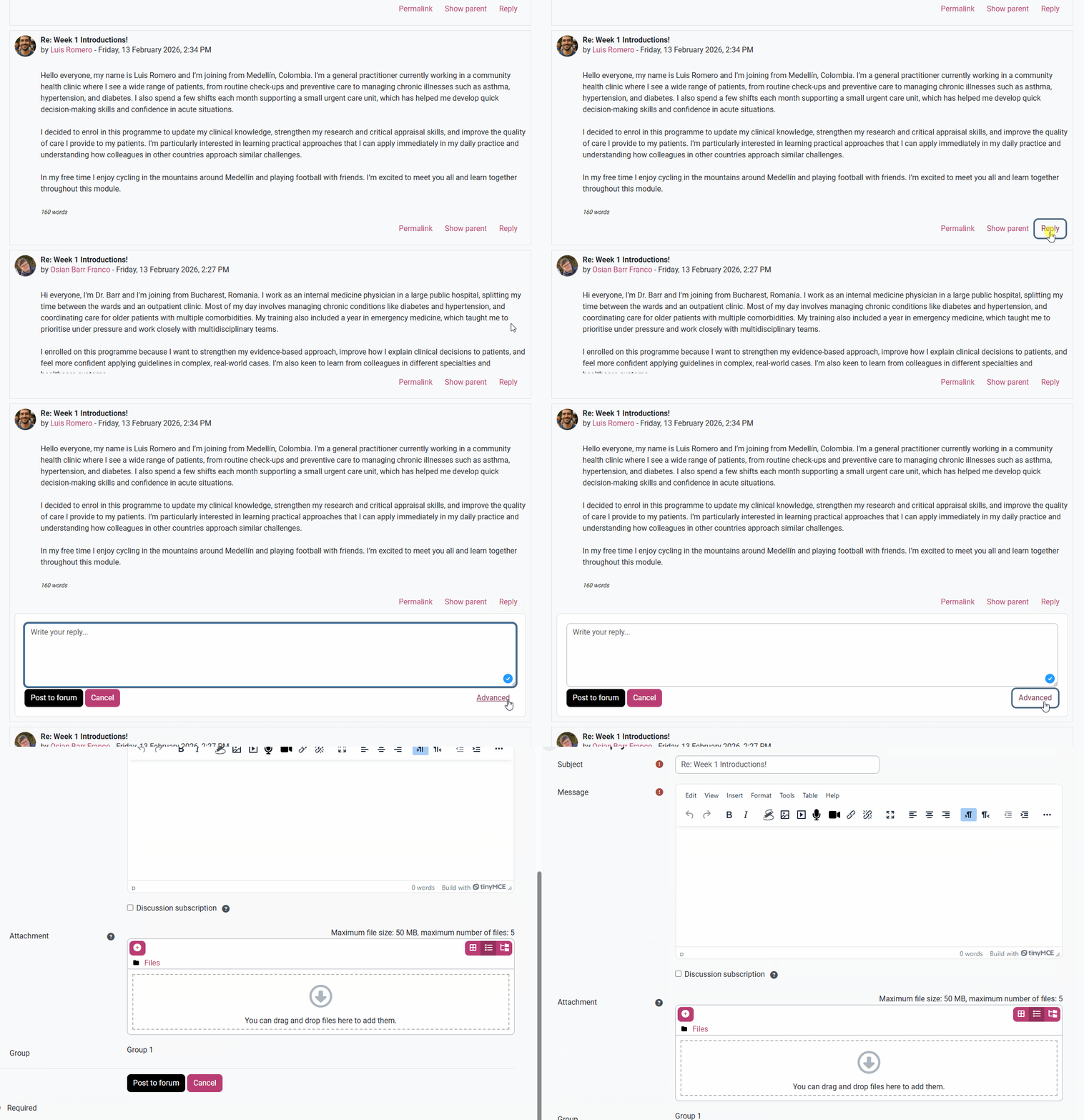
To advance reply to a post. First, find the post you would like to reply to. Scroll to the bottom of the post and click ‘Reply’. A text box should pop up below, with an ‘Advanced’ button in the bottom right. Click the Advanced option, then write your message in the ‘Message’ text box. This will allow you to put in custom formatting, adjust images, and use our other advanced reply features.
Make sure to click ‘Post to forum’ when you're done so your reply will post to the Forum.
How do I resize an image in my Academic Forum post?
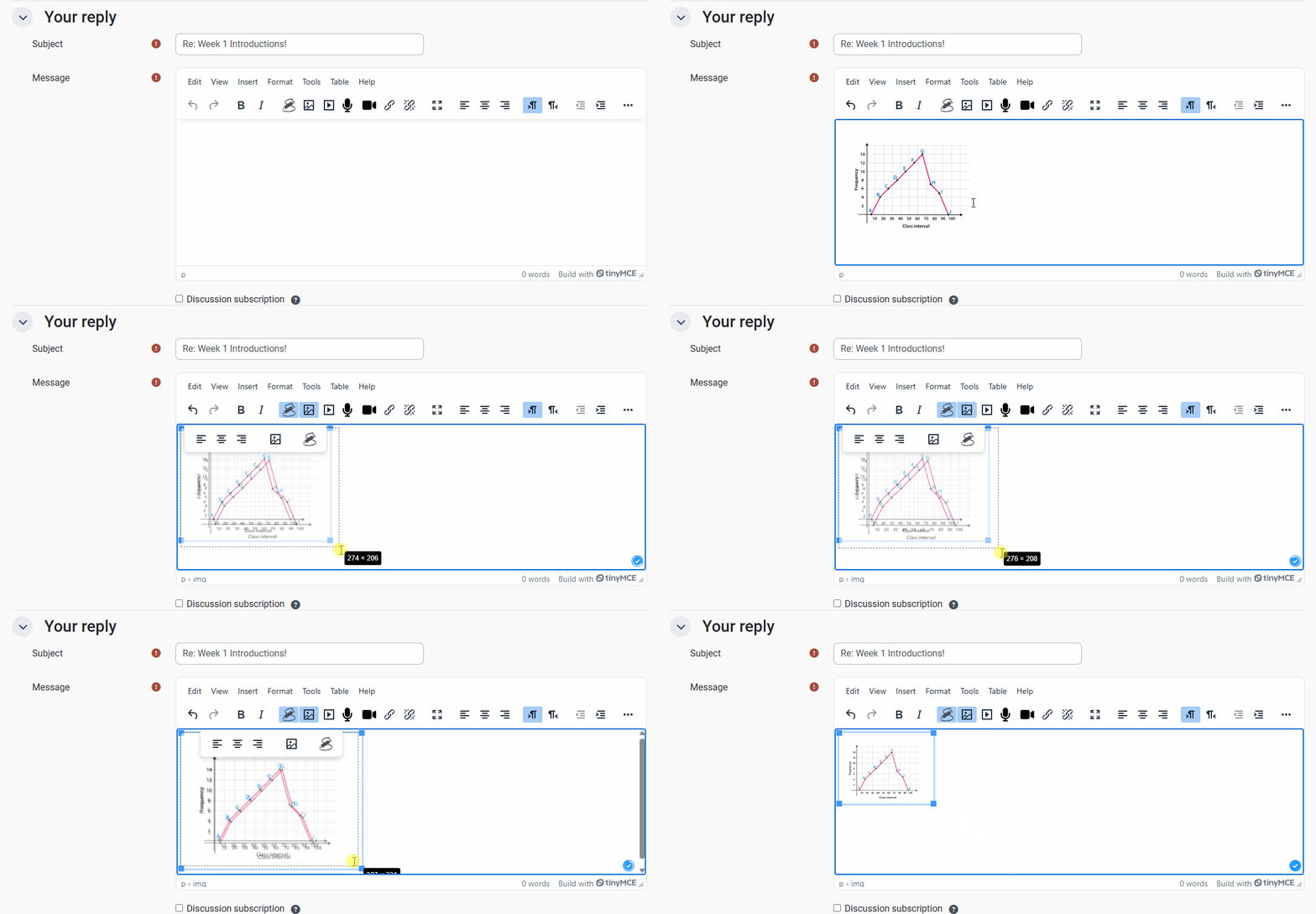
You can resize an image on your Academic Forum post before you post it, or up to 30 minutes after you originally post.
To alter the size of an image, open the ‘Advanced’ reply section. Then, copy and paste an image of your choice into the main ‘Message’ section. From here, you can drag any corner of your image outward to enlarge, and inward to reduce.
The image should not be any bigger than the size of the text box, otherwise it will cause issues with the forum and your response might ...
Accessing the Learna AI Writing Tool.

To open the AI writing tool, left-click the ‘Learna AI Tutor’ button at the top of the Academic Forums. The AI Tool can be accessed in all Academic Forum weeks and the Reflection Journal, and will open in a new tab than the Moodle page.
How do I submit my Module Activity?
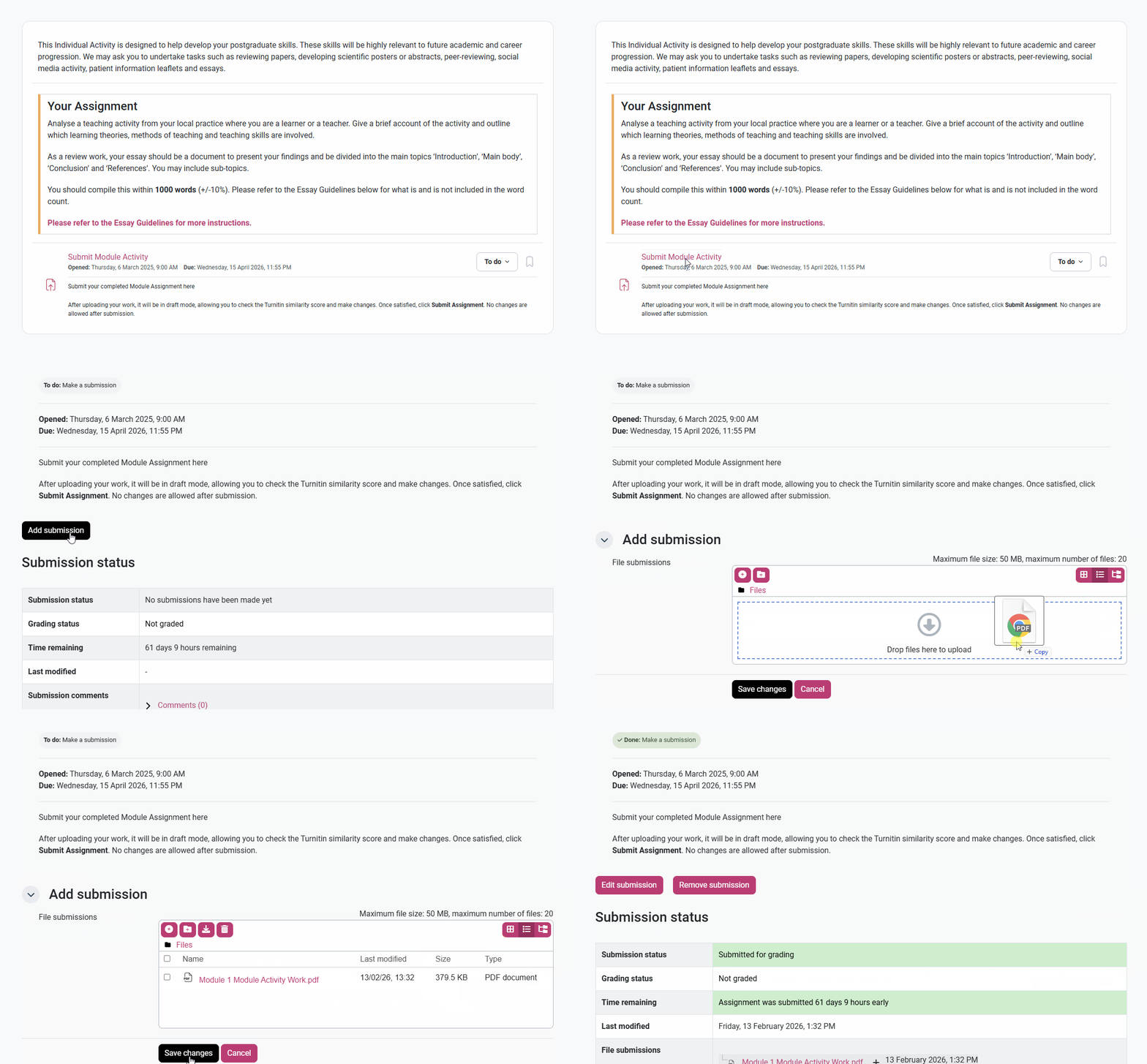
To submit your Module Activity, click into the Module Activity section, either from your main course page or from the left-hand side column. Then, scroll to the bottom of the page beneath your activity’s description and click ‘Submit Module Activity’. From here, click the black ‘Add submission’ button and drag your correct file into the File Submission box. Once this has been uploaded, click ‘Save changes’ to save your submission.
When you have successfully submitted your Module Activity,...
How do I edit my Academic Forum post?
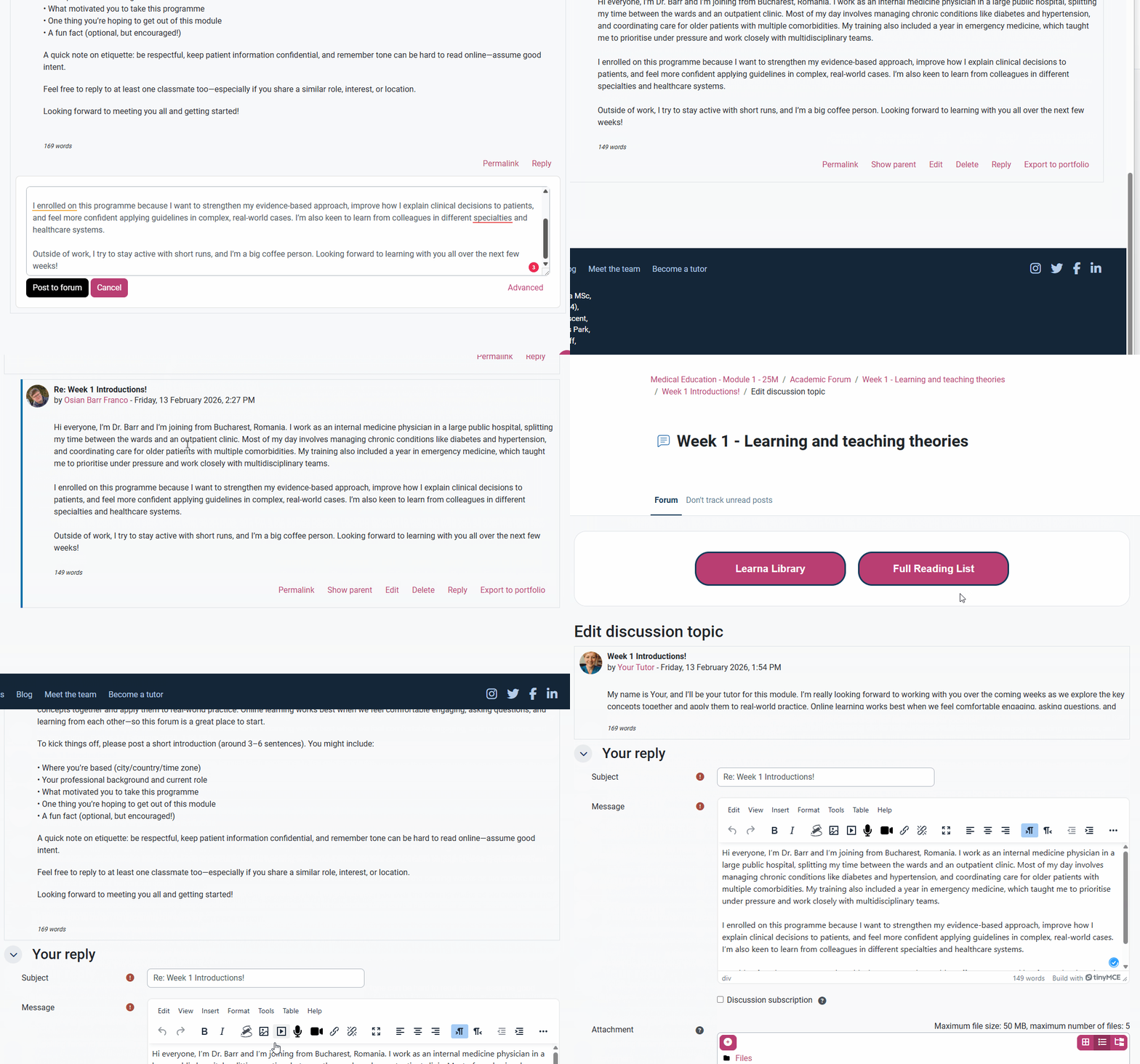
Note: You can only edit an Academic Forum post 30 minutes after you originally post it.
To edit your own post in the Academic Forum. First, go to the specific post you want to edit. Then, scroll to the bottom of your post, where you will see a pink option list, and select ‘Edit’.
You will then be brought to the ‘Your reply’ page, where you can edit any section of your post in the ‘Message’ section. After you have made your edits, remember to click the black ‘Post to forum’ button so ...
How do I change the layout of the Academic Forum?
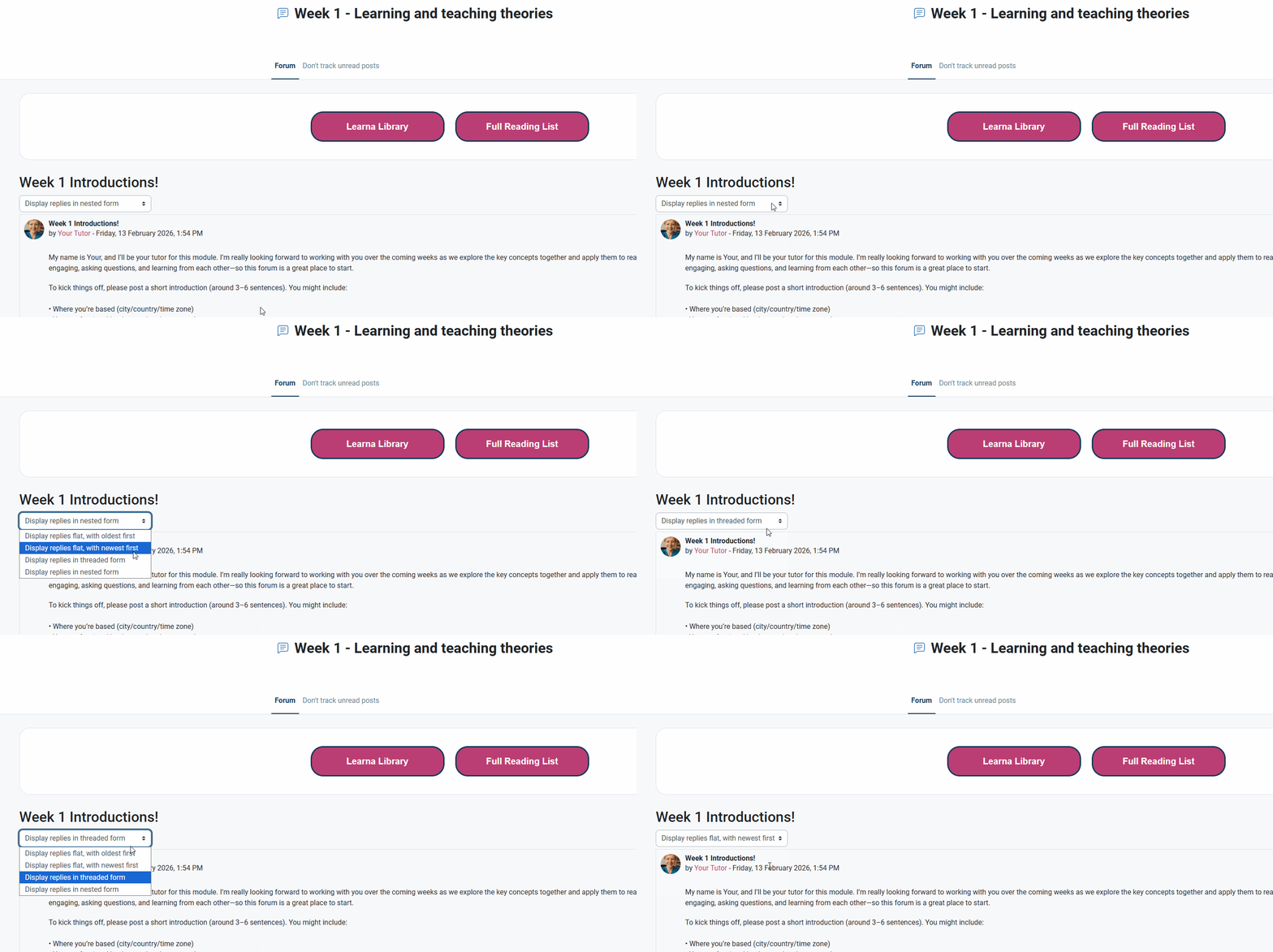
To change the layout of the Academic Forum, first, go to the week you want to open and click the discussion you want to view. Then, at the top of the discussion thread, select to view either the oldest first, the newest first, chats in thread form, or chats in nested form.
The oldest replies are the earliest replies in order from when the discussion forum was created. The newest replies are the most recent responses in the discussion forum. The threaded view allows you to see who has ...

How do I private message my Tutor?
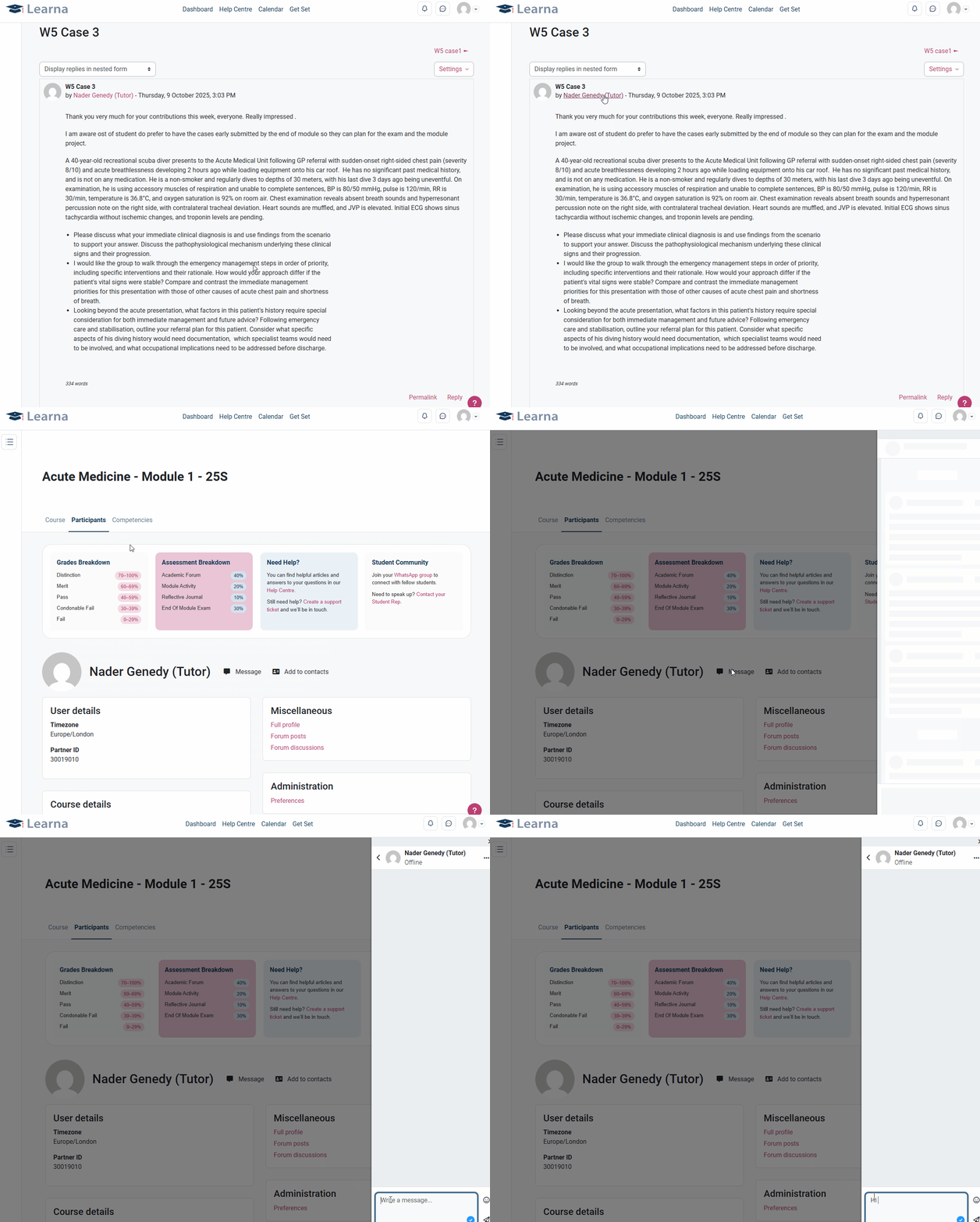
You can message your Tutor in one of two ways.
Firstly, find your Tutor’s Academic Forum post and click their name tag on the post. Then, when you are on their profile, click the ‘Message’ button to the right of their name and write your message in the right-hand side pop-up tab.
Secondly, you can search for your tutor by clicking on the speech bubble in the top-left corner of the course page. When you click this, a right-hand side pop-up tab will appear where you can either search for ...
How can I track my progress?

You can track your progress in the Academic Forum, Module Activity, or Reflective Journal.
To view what you have to do to complete any of these sections, or to track your progress. First, click into the section you want to view from either the main programme page or from the left-hand side tab. Then, scroll down until you see a ‘Completion’ button on the right-hand side of the page. Click this, then you should see a ‘Students must’ followed by the criteria for completion. The criteria ...
How can I edit my Reflective Journal?
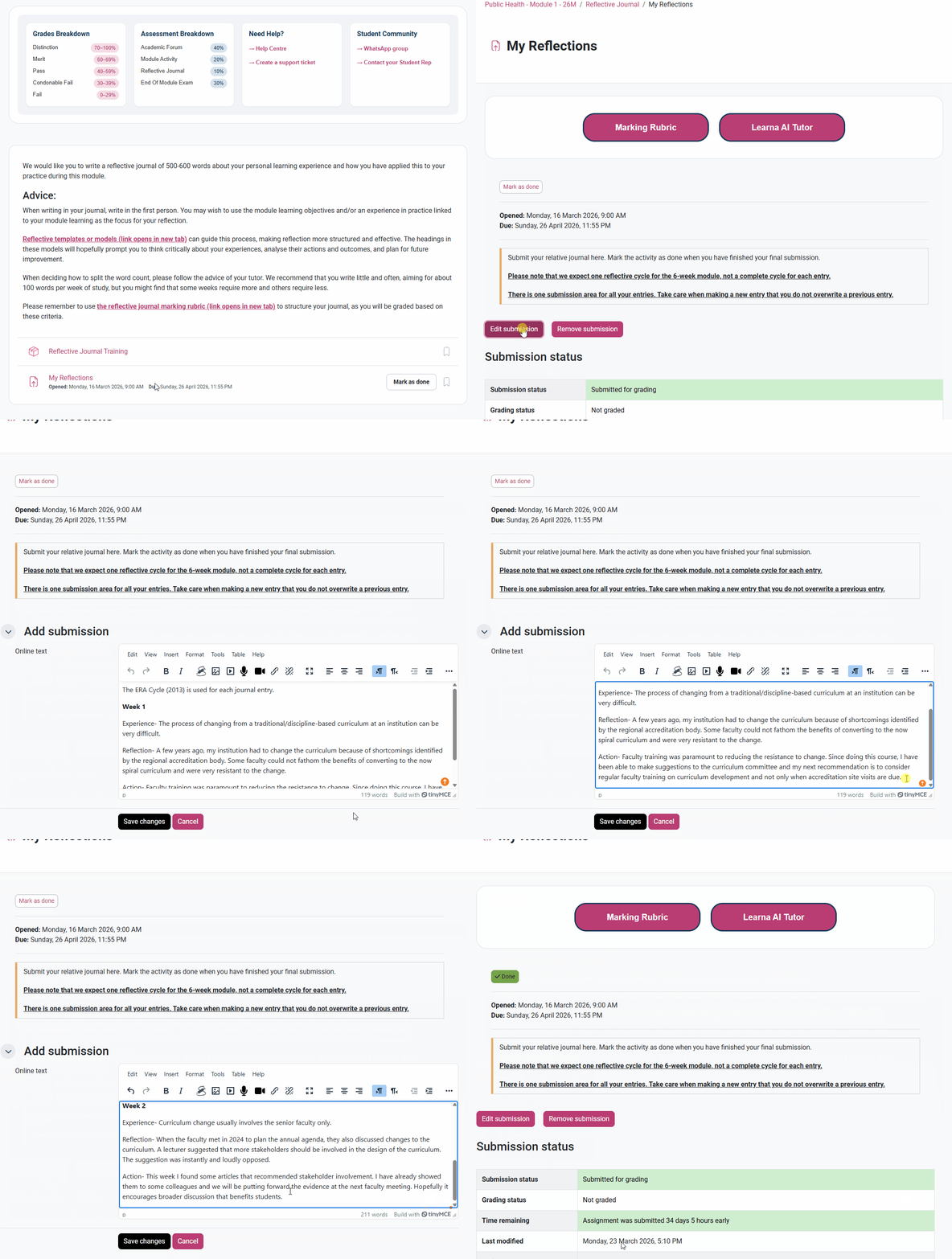
Note: You can post (and edit your posts) throughout the full 6 weeks of the module.
To edit your Reflective Journal, click into the ‘My Reflections’ section, either from your main course page or from the left-hand side column. Then, click ‘Edit submission’ above the submission status of the post you would like to edit. From here, you can edit your post in the text box in the ‘add submission’ area. Your Reflective Journal will be automatically submitted for marking at the end of the module...